Menu
-
class
pygamelib.gfx.ui.Menu(title: pygamelib.base.Text = None, entries: list = None, padding: int = 1, config: pygamelib.gfx.ui.UiConfig = None)¶ Bases:
objectThe Menu object consists of a list of other Menu objects and/or
MenuActionobjects.It has a title that is used in a
MenuBarand the list of its entries is displayed when the menu is expanded.A Menu object can contains an arbitrary number of entries with an arbitrary depth of submenus.
-
__init__(title: pygamelib.base.Text = None, entries: list = None, padding: int = 1, config: pygamelib.gfx.ui.UiConfig = None) → None¶ The constructor takes the following parameters.
Parameters: - title (str |
Text) – The title of the action (i.e: its label) - entries (list) – A list of
MenuActionor other Menu objects. - padding (int) – The horizontal padding, i.e the number of space characters added to the left and right of the title.
- config (
UiConfig) – The configuration object.
Example
menubar = MenuBar(config=UiConfig.instance(game=Game.instance()))
file_menu = Menu(
    "File",
    [
        MenuAction("Open", open_file),
        MenuAction("Save", save_file),
        MenuAction("Save as", save_file_as),
        MenuAction("Quit", exit_application),
    ]
)
menubar.add_entry( file_menu )
menubar.add_entry( MenuAction("Help", display_help) )
screen.place(menubar, 0, 0)
screen.update()
- title (str |
Methods
__init__(title, entries, padding, config)The constructor takes the following parameters. activate()Activates the menu. add_entry(entry)Add an entry to the menu. collapse()Collapse the menu. current_entry()Return the currently selected menu entry. expand()Expand the menu. menu_width()Calculate and return the maximum width of the menu based on the widest element. render_to_buffer(buffer, row, column, …)Render the object from the display buffer to the frame buffer. select_next()Select the next entry in the menu. select_previous()Select the previous entry in the menu. title_width()Return the actual width of the menu title. Attributes
configGet / set the config of the Menu, it needs to be a UiConfig.entriesGet / set the entries of the Menu, it needs to be a list of MenuActionobjects.paddingGet / set the padding before and after the menu, it needs to be an int. selectedGet / set the selected status of the Menu, it needs to be a boolean. titleGet / set the title of the Menu, it needs to be a Textobject or a python str.-
activate()¶ Activates the menu. This method contains its own event loop a bit like the show() methods of Dialogs. It expands the menu if it wasn’t already the case and listen to keyboard key strokes.
- SPACE or ENTER activates (i.e execute) menu actions.
- DOWN select the next entry.
- UP select the previous entry.
- ESC or LEFT close the menu.
- RIGHT activate (i.e expand) a submenu.
Example:
menu.activate()
-
add_entry(entry)¶ Add an entry to the menu. An entry can be a
MenuActionor aMenu. Entries are displayed in the order of there additions from left to right.Important
The config of the entry is overwritten by the config of the Menu. That is why it’s not mandatory for
MenuandMenuAction.Parameters: entry ( MenuAction|Menu) – The entry to add.Example:
menu.add_entry( Menu('File') )
menu.add_entry( MenuAction('Exit', quit_application) )
-
collapse()¶ Collapse the menu. A menu is automatically collapsed after activation.
Example:
file_menu.collapse()
-
current_entry()¶ Return the currently selected menu entry.
It can be either a
Menuobject or aMenuActionobject.
-
entries¶ Get / set the entries of the Menu, it needs to be a list of
MenuActionobjects.
-
expand()¶ Expand the menu. A menu is automatically expanded when activated.
Example:
file_menu.expand()
Calculate and return the maximum width of the menu based on the widest element. This includes the padding.
Returns: the menu width. Return type: int
-
padding¶ Get / set the padding before and after the menu, it needs to be an int.
The padding is only used when the menu is nested into another menu.
-
render_to_buffer(buffer, row: int, column: int, buffer_height: int, buffer_width: int) → None¶ Render the object from the display buffer to the frame buffer.
This method is automatically called by
pygamelib.engine.Screen.render().Parameters: - buffer (numpy.array) – A screen buffer to render the item into.
- row (int) – The row to render in.
- column (int) – The column to render in.
- height (int) – The total height of the display buffer.
- width (int) – The total width of the display buffer.
-
select_next()¶ Select the next entry in the menu.
The selected entry is rendered differently to give a visual feedback to the user. Please see the
UiConfigclass for the styling option available to the Menu object.Example:
menu.select_next()
-
select_previous()¶ Select the previous entry in the menu.
The selected entry is rendered differently to give a visual feedback to the user. Please see the
UiConfigclass for the styling option available to the Menu object.Example:
menu.select_previous()
-
selected¶ Get / set the selected status of the Menu, it needs to be a boolean.
This changes the representation (way it’s drawn) of the menu entry.
-
title¶ Get / set the title of the Menu, it needs to be a
Textobject or a python str.The title is used in the
MenuBar. In the following image, the title of the expanded menu is “File”.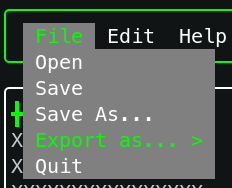
-
title_width() → int¶ Return the actual width of the menu title. This takes into account the padding.
Example:
menu.title_width()
-